Use Patient Sign-In to provide a way for patients to check into your office when they arrive for an appointment. Patients can use a keyboard, fingerprint sensor, their patient reward card, or a touch screen to complete the sign-in process.
If needed, your staff can bypass the Sign-In screen and sign a patient into your office at any computer station. (See "Use Staff Sign-In Options" for details.)
You can optionally allow patients to sign in for their appointment with your Practice Connect app when they come within a certain distance of your office, and within a certain time before they scheduled appointment. See "About Practice Connect" for details.
Generally, you can start the Sign-In application on your Patient Sign-In station, and leave it active until the end of the day. You can open this feature in multiple ways: Use the method that's most convenient for you.
Open Patient Sign-In From ViewPoint ViewPoint main menu > Daily Activities > On-Deck Sign-In.
Automatically Launch Patient Sign-In - You can also start Patient Sign-In automatically, or with a desktop shortcut. See "Set Up Patient Sign-In Station" for details.
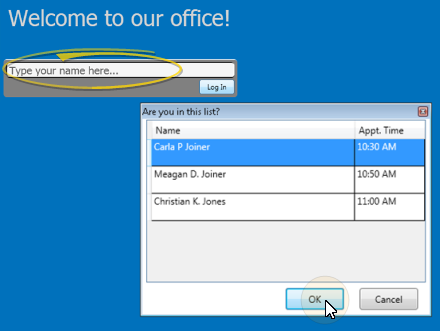
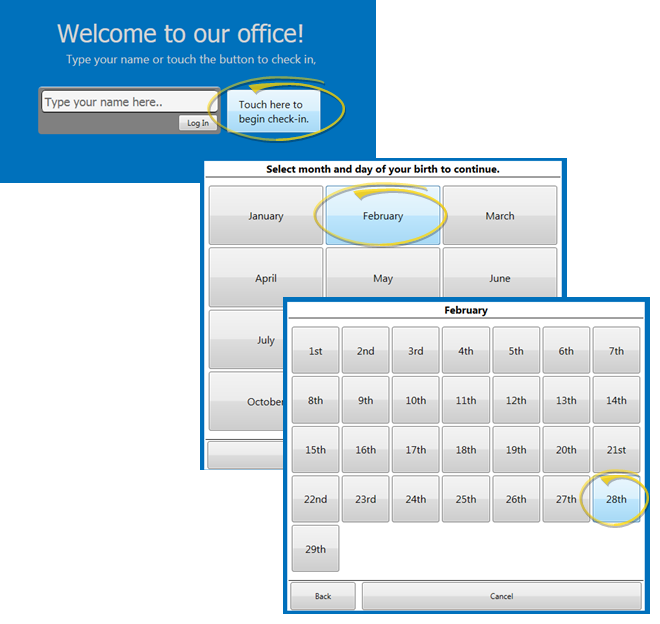
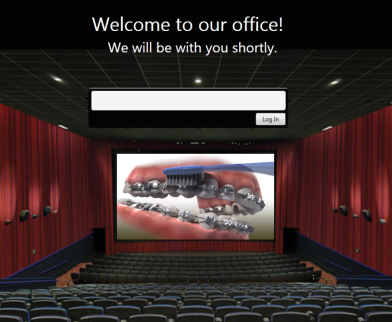
Initiate Signing In Depending on how you have set up your greeting screen, patients can check in at your sign-in station in several ways. Be sure your greeting screen includes clear directions for each method. (
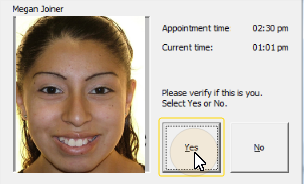
Confirm Identity To complete the sign-in process, verify that the displayed patient information is correct, and click or touch Yes. Patient alerts, notifications, and sounds may be triggered after the patient is confirmed. Read the messages that appear on the screen, then select Ok to continue. (See "Get Started with Patient Sign-In" for details.)
Closing Message - When your closing message appears, the patient has successfully signed into your office, and will appear in your
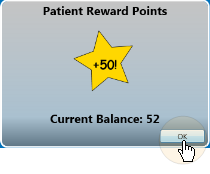
Patient Rewards Points (Optional.) - You can set up your system so that patients earn points toward your Patient Rewards program when they sign in early, and lose points when they sign in late. When patients earn points for signing in early,they see the newly acquired points and their point total at the end of the sign in process. See "Set Up Patient Reward Triggers" for details.
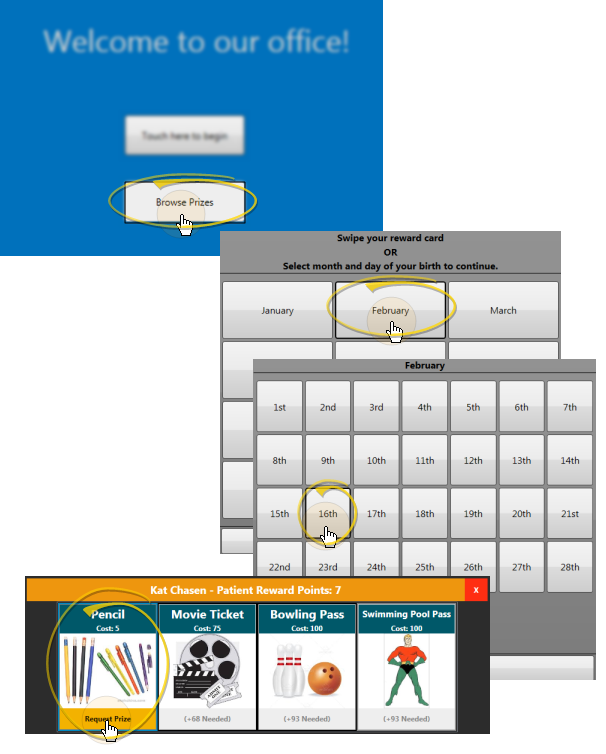
Patient Prize Selector (Optional.) If you have included a Prize Selector button on your sign-in greeting screen, patients can press the button, then either swipe their card (if enabled) or enter their birthday month and day to review their reward point total, browse prizes, and select a prize, which triggers the pending prize process. (See "Use the Patient Rewards Prize Selector" for details.)
Exit Classic style sign-in - Generally, you can leave Sign-In active on your Patient Sign-In stations all day. Then, at the end of the day, Type your sign-in password at the patient prompt and press Enter.
Exit Contemporary style sign-in - Generally, you can leave Sign-In active on your Patient Sign-In stations all day. Then, at the end of the day, Type your sign-In password at the sign-in prompt and press Enter. Then select Main > Exit at the sign-in editing screen. If you have no sign-in prompt, you can instead press Ctrl+Q , then enter your sign-in password to exit the sign-in screen.
 │
│  │
│  │
│ 
Ortho2.com │1107 Buckeye Avenue │ Ames, Iowa 50010 │ Sales: (800) 678-4644 │ Support: (800) 346-4504 │ Contact Us
Chat with Software Support │Chat with Network Engineering │ Chat with New Customer Care
Remote Support │Email Support │ Online Help Ver. 12/18/2015