General On-Deck Sign-In Options
Use the General tab of your On-Deck Properties window to set up your sign-in password, choose sounds to play when certain patient sign-in events occur, and determine whether assistants and chairs can be assigned when a patient is seated. These settings are workstation-specific: Other workstations in your ViewPoint system may have different settings.
These options are available for both the Classic style sign-in screen and the Contemporary style.
-
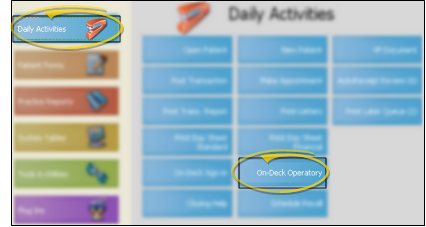
 Open On-Deck Properties - ViewPoint main menu > Daily Activities > On-Deck Operatory >
  Properties.
-
Open your Operatory Display.
-
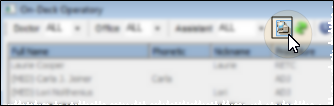
Open the On-Deck Properties window.
-
Open General Tab - Click the General tab at the top of the window.
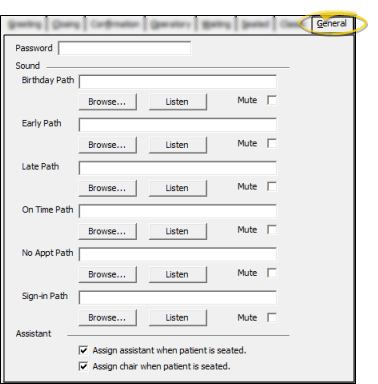
Password - Type a Patient Sign-In password the password field. You use this password to exit Patient Sign In, and to access the editing features of your Contemporary sign-in screen. If you do not create a sign-in password, your Patient Sign-In station may be vulnerable to patients and other people accessing your data.
Set Up Sounds - You may set up sounds to play when certain patient sign-in events occur, including a nearby birthday, and early and late arrivals.
Choose an Event - You may choose to set up sounds for all Sign-In events, or only certain events. Each event may have a different sound, or you can assign the same sound to multiple events.
Birthday - This sound plays at the patient sign-in station when the patient's birthday is within one week of today's date.
Early Arrival - This sound plays at the patient sign-in station when the patient signs into your office too early, as defined by your sign-in notification settings. (See "Sign-in Confirmation Options" for details.)
Late Arrival - This sound plays at the patient sign-in station when the patient is late for their appointment, as defined by your sign-in notification settings. (See "Sign-in Confirmation Options" for details.)
No Appointment - This sound plays at the patient sign-in station when the patient has no appointment scheduled for today.
On Time - This sound plays at the patient sign-in station when a patient signs into your office on or before the scheduled appointment time, but not too early (as described below).
Sign-In - This sound plays at your Operatory Display station whenever the operatory refreshes and detects new patients have signed in.
Choose a Sound - After selecting the event to work with, you may browse to select a sound file, enable /disable the sound, and listen to a sample.
Select a Sound - You can type the full path and file name of the sound file in the path field, or click Browse and select any .WAV sound file available to the workstation.
Listen - Once you have entered a sound file into a path field, you can click Listen to hear a preview of the selected sound.
Enable / Disable Sound Check the Mute option to disable a sound. If this option is disabled, the sound will not be played when a patient signs into your office.
Assistant / Chair - You may choose whether to prompt for the assistant and chair to assign to appointments as patients sign into your office. Otherwise, the properties selected when the appointment was first scheduled will be used. (You can also change these details from your Light Bar widget).
Save Your Changes - Click Ok to save the changes you have made and close the editing window.