Manage Sign-In Screen Layouts
You can create a collection of Patient Sign-In layouts for holidays and special interest events and load them with very little effort. You can also make changes to the current layout without saving the changes.
We recommend you save all your layouts in a folder such as C:\Program Files\SignIn on the sign-in station, or in some other logical and consistent location. If your layouts are important to you, you can include them in your regular backups.
This option is available for the Contemporary style sign-in screen only, not the Classic style.See "Set Up Classic Sign-In Greeting Screen" for details about setting up the Classic style screen.
Get Started
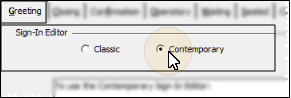
 Enable Contemporary Option - ViewPoint main menu > Daily Activities >
  Properties > Greeting Tab > Contemporary.
Choose Your Settings
-
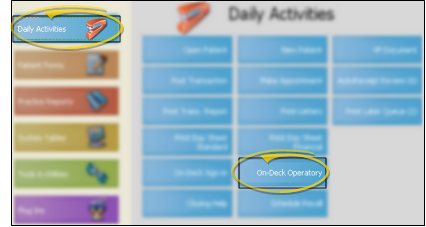
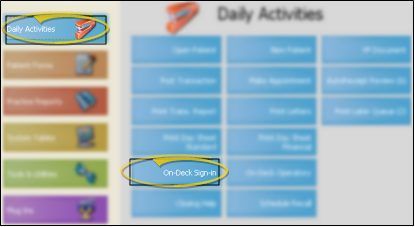
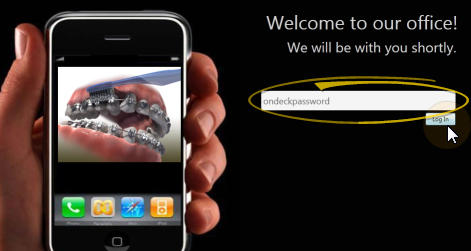
Open Patient Sign-In Editor - ViewPoint main menu > Daily Activities >
-
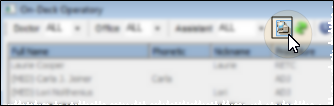
Open Layout Options - Click the Layouts button from the Sign In Editor ribbon bar to manage your greeting screen layouts.
-
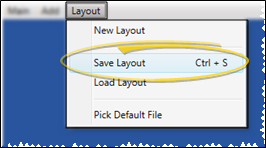
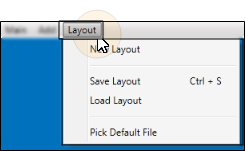
Save Changes - From the Sign In Editor ribbon bar, click Layout, and choose Save Layout (or press Ctrl-S on your keyboard) to save any changes you have made to the screen. (See "Manage Sign-In Screen Layouts" for details about creating and using multiple layouts.)
-
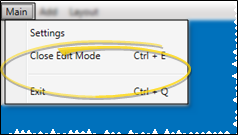
Exit Edit Mode - When you have finished making changes to your sign-in screen, click the Main button on the Sign In Editor ribbon bar. You can then choose Close Edit Mode (or press Ctrl-E) to reactivate patient sign-in, or Exit (or press Ctrl-Q) to close the sign-in window. If you re-activate Patient Sign-In without first saving changes, any changes you have made will remain in effect until you fully exit Patient Sign-In. When you then re-launch Sign-In, the layout changes will be erased.